Trigger Campaign
Trigger Campaign is type of Campaign that will be execute and triggered when ever it called.
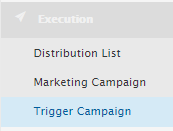
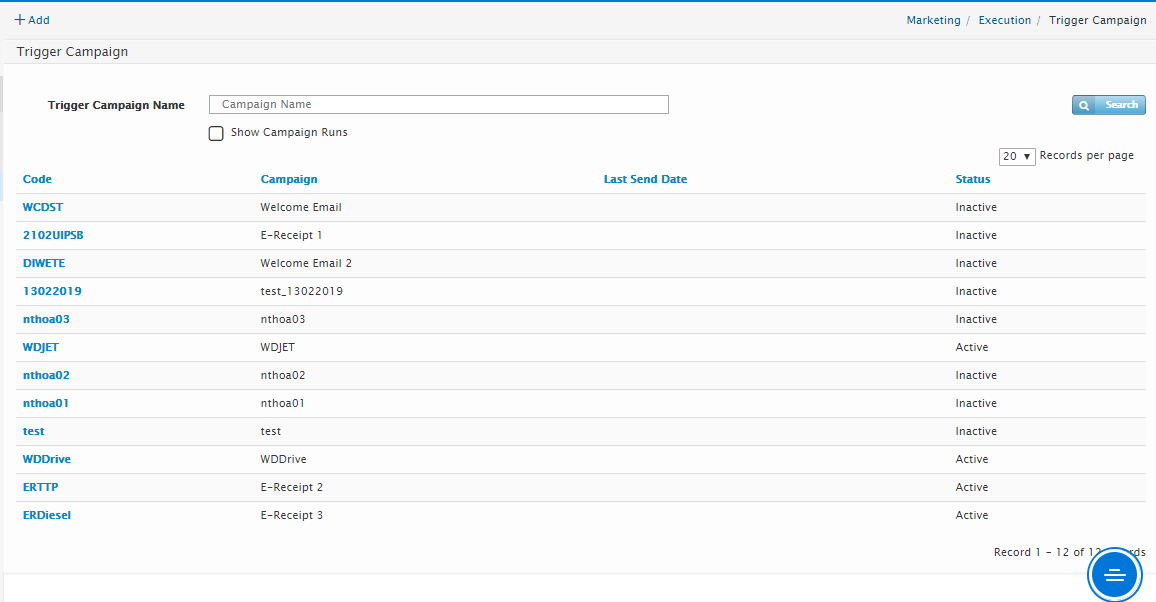
By default list of all Triggered campain will be show on the page including all active and Inactive campaigns.
Create New Trigger Campaign
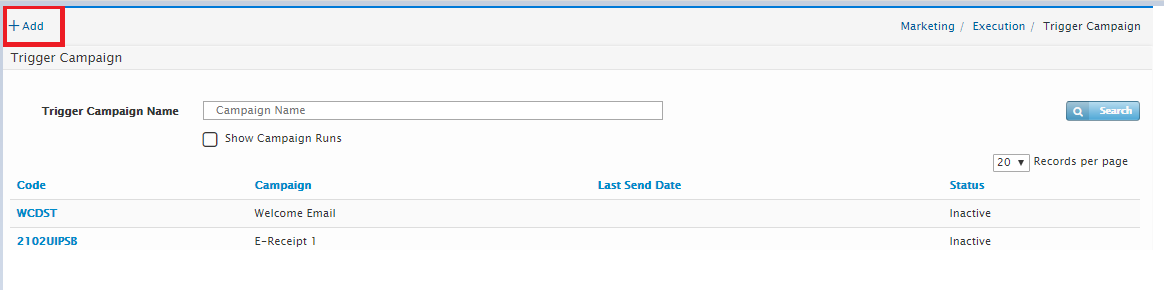
To create new Marketing Campaign, click “Add” button located on the right-hand side of the page.
The Create Campaign page will be displayed as shown below.
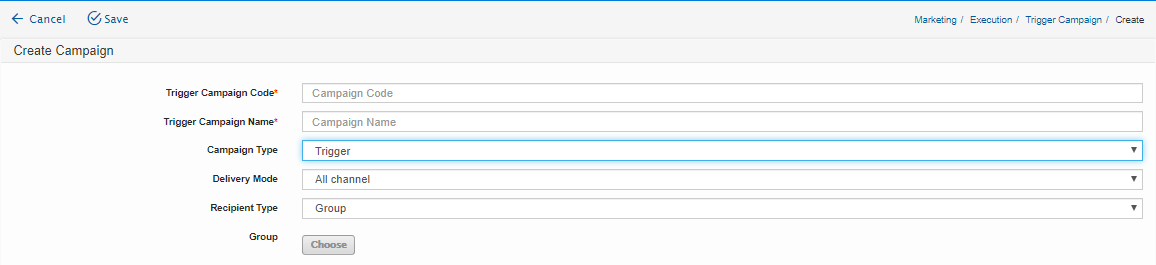
Users will need to enter the following details:
Field Name |
Mandatory |
Length |
Remarks |
Campaign Code |
Yes |
50 chars |
Enter Campaign Code (alphanumeric) |
Campaign Name |
Yes |
49 chars |
Enter Campaign Name |
Yes |
N/A |
Trigger : Will be run upon Campaign call over API or Event Occurance |
|
Delivery Mode |
Yes |
N/A |
|
Recipient Type |
Yes |
N/A |
Recipient can be Individual Members or Member Group |
Member/Group |
Yes |
N/A |
Select the a Member or Distribution list |
SMS - Click SMS tab and tick Send SMS checkbox. Then, provide all the information needed.
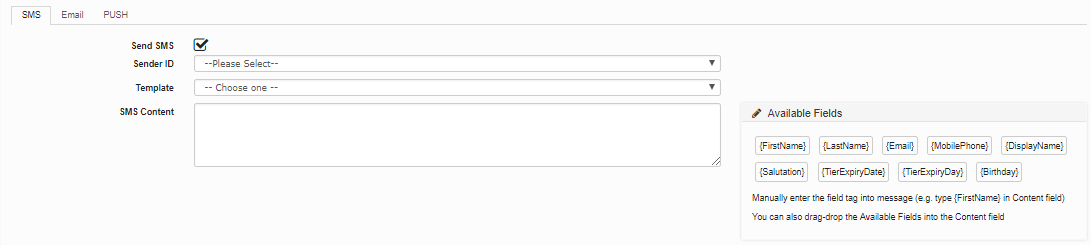
Field Name |
Mandatory |
Length |
Remarks |
Sender ID |
Yes |
Click the drop-down list and select the appropriate Sender ID from the options given. |
|
Template |
No |
N/A |
To select one of active templated. |
SMS Content |
Yes |
700 Char |
Enter SMS content |
Note: Available Field (known as variable tags) are used to show the information of the members when sending a campaign.
Please note that the information getting from the information provided during creation/update of the member in Dexperien. For reference, please see the figure below – Add Member page.
Email Campaign- Click Email tab and tick Send Email checkbox. Then, provide all the information needed.
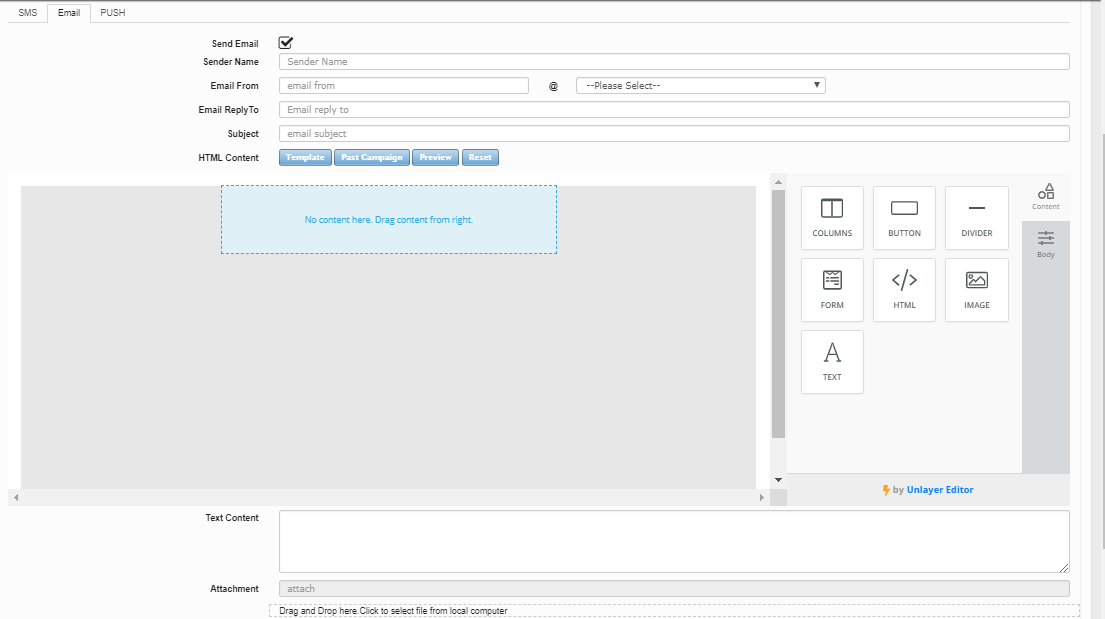
Field Name |
Mandatory |
Length |
Remarks |
Sender Name |
No |
N/A |
Enter the name of the sender |
Email From |
Yes |
N/A |
Enter Email From |
Email Reply To |
Yes |
N/A |
Enter Email Reply To and choose the appropriate domain from the drop-down box as shown in the figure.
|
Subject |
Yes |
N/A |
Enter the Subject of the Email |
HTML Content |
Yes |
N/A |
User has the option to choose from the following options: a. Template – you have the option to use the template feature in creating your email campaign. b. Past Campaign – you may use the past campaigns and modify it accordingly. c. Preview – you may click to preview the campaign in browser anytime. (Note: The Preview window may be blocked if you have a pop-up blocker in your browser). d. Reset – when you click on reset, it will revert to the last saved content. |
Text Content |
No |
N/A |
Enter Text Content of the Email |
Attachment |
No |
N/A |
Upload an attachment if applicable |

Created with the Personal Edition of HelpNDoc: Free EPub and documentation generator